36 Etsy Listing Video Templates: A Practical Guide to Saving Time and Boosting Your Shop’s Appeal
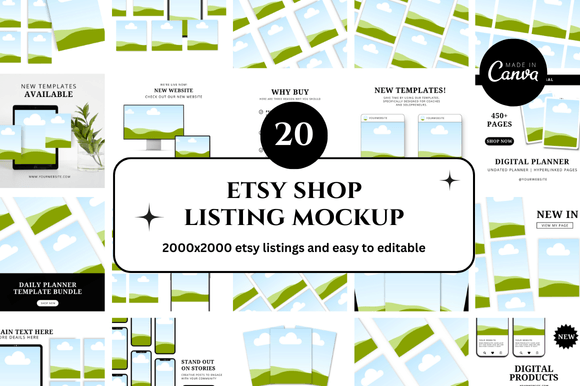
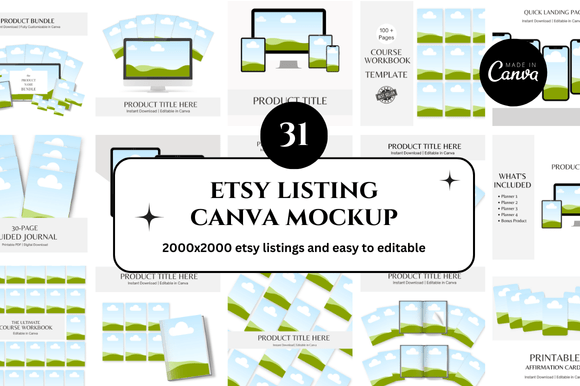
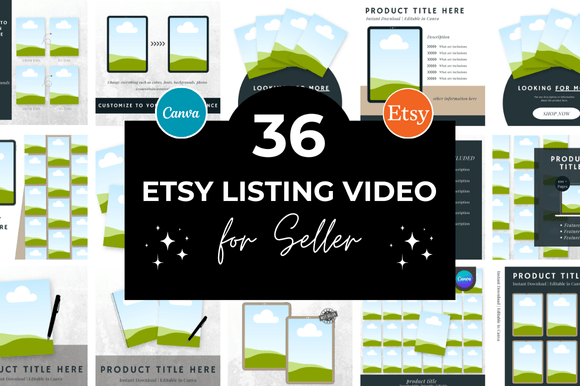
If you sell digital products on Etsy—or any creative marketplace—you already know that listing presentation can make or break a sale. Shoppers scroll fast, and static images alone often fail to capture attention. That is where 36 Etsy Listing Video templates come into play. These ready-made, customizable Canva mockups let you create professional listing videos in minutes, without hiring a designer or learning complex editing software. The bundle includes 36 distinct video templates, plus bonus freebies, and is designed for instant download and immediate use.
Yet even the best template set can lead to frustration if you approach it the wrong way. Many sellers, from beginners to experienced shop owners, make avoidable mistakes that reduce the effectiveness of these videos—or worse, hurt their shop’s credibility. This article walks through the most common pitfalls, explains why they matter, and offers straightforward solutions so you get the most out of your investment.
Mistake 1: Treating Every Template as a One-Size-Fits-All Solution
The 36 Etsy Listing Video bundle offers variety: square formats, different color palettes, layout styles, and mockup setups. It is tempting to pick the first attractive template and drop your product image into it, assuming the job is done. That approach undermines the very reason you bought the templates in the first place—to present your products in the best possible light.
Why it hurts your results: A template designed for digital planners may look cluttered or mismatched if used for a printable art print. Shoppers notice when a video feels generic or disconnected from the product. This reduces trust and can lower your click-through and conversion rates.
How to avoid it: Before editing, open all 36 templates in Canva and preview each one. Ask yourself: “Does this layout highlight my product’s key features? Does the color scheme complement my brand?” Customize not just the placeholder image but also the text, font choices, and background elements. Change the wording to match your specific offer. A template is a starting point, not a final product.
- Match the template style to your product category (e.g., minimalist for printables, vibrant for digital planners).
- Adjust the video length and pacing—some products need a slower reveal to show details.
- Replace any stock icons or graphics with your own branded elements.
Mistake 2: Overlooking the “Instant Download” and Link Workflow
Because these templates are delivered as a Canva link (not a traditional file download), you need a reliable process to access, edit, and save your videos. New users sometimes miss the instruction or assume they must download each video file separately before editing. This leads to confusion and wasted time.
Why it matters: If you cannot quickly locate or edit your templates, you defeat the time-saving purpose. You also risk losing access if you do not understand how Canva’s sharing and saving settings work.
Better approach: Right after purchase, open the link in a desktop browser (Canva works best on a laptop or desktop). Click “Use template” to copy it into your own Canva account. Then rename the project so you can find it later. Create a folder in Canva called “Etsy Listing Videos” and store all 36 templates there. This way, you can return to any template, duplicate it, and create variations without ever losing the original.
- Open the link immediately and save it to your account.
- Test the editing features—add your own image, change text, adjust colors.
- Export a sample video to ensure the format and resolution match Etsy’s requirements.
Mistake 3: Using Unoptimized Video Dimensions for Etsy Listings
Etsy supports video in listings, but the platform has specific guidelines. The 36 Etsy Listing Video templates are typically designed in square format (1:1 ratio), which is ideal for most listings. However, sellers sometimes crop, resize, or export videos in a way that reduces quality or violates aspect ratio rules.
How this affects performance: Blurry, stretched, or incorrectly sized videos look unprofessional. Worse, they may not display properly on mobile devices, where most Etsy traffic comes from. Shoppers will scroll past a listing that looks low-quality.
What to check before uploading: Always export your video at the recommended resolution: at least 1080 x 1080 pixels for square, or 1920 x 1080 for landscape if your template allows it. Keep the file size under 100 MB (Etsy’s limit). Use MP4 format with H.264 compression. Preview the video on your phone before publishing to catch any cropping or alignment issues.
- Stick with the template’s native aspect ratio unless you know exactly what Etsy supports.
- Use Canva’s “Export” settings to choose HD quality and MP4 format.
- Test the video in an Etsy draft listing first—do not publish until you see how it looks on desktop and mobile.
Mistake 4: Ignoring the Bonus Freebies and How They Fit Your Workflow
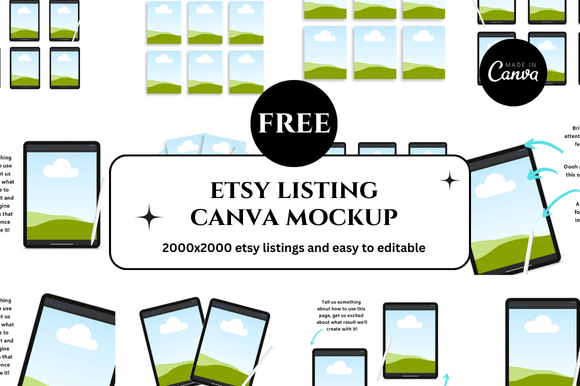
The bundle includes bonus freebies—additional mockups, graphics, or templates—that many sellers forget to download or never use. This is a missed opportunity. The freebies are often designed to complement the main set and can help create a cohesive brand look across your shop.
Why this matters: Consistent visual branding across listings builds recognition and trust. Using the bonus items for social media posts, Pinterest pins, or shop banners creates a professional ecosystem around your products.
Practical advice: After downloading the main templates, locate the bonus file (usually included in the same PDF or link document). Open these freebies in Canva as well. Use them for your shop banner, social media promotion, or even as additional listing images. If the freebies include extra mockup scenes, test them alongside your main video templates—you might find a fresh angle that sets your shop apart.
Mistake 5: Forgetting That Video Mockups Are Not Replacements for Real Product Photos
A common misunderstanding among new sellers is that a beautiful mockup video can substitute for actual product images. While 36 Etsy Listing Video templates make your digital products look polished, buyers still want to see realistic representations—especially for physical items like printables or planner covers.
The risk: Overly stylized videos that hide true dimensions, colors, or usability can lead to refund requests and negative reviews. If your video shows a perfectly styled mockup but the actual download looks different, customers will feel misled.
How to balance it: Use the video mockup as the first or second visual in your listing to grab attention. Follow it with at least one realistic photo or screenshot of the actual product. If you are selling digital planners, show the template pages as they would appear printed or on a tablet. Be honest about colors and proportions. The right combination of a compelling video and truthful images increases trust and reduces returns.
- Always include a plain, unedited screenshot of your product in the listing.
- Adjust brightness, contrast, and color in the video to match the real product.
- Add text overlays that explain what the buyer will receive (e.g., “36 templates, editable in Canva, instant download”).
Mistake 6: Not Preparing Your Brand Assets Before You Start Editing
Many sellers dive into editing without first gathering their brand colors, fonts, logos, and product images. This leads to inconsistent font choices, mismatched colors, and a disjointed overall look across listings.
Why this matters: The 36 templates are designed to be cohesive when used together, but only if you apply consistent branding. Shoppers who visit your shop after seeing a video in a listing should recognize the same style on other pages. This familiarity encourages browsing and multiple purchases.
Better preparation: Before opening Canva, create a simple brand style guide: two to three primary colors, one or two fonts, and a logo or watermark. Upload these to Canva’s “Brand Kit” (available in Canva Pro). This allows you to apply your branding to any template with one click. If you do not have Canva Pro, save the hex codes and font names in a document and manually apply them to each template. This upfront work saves hours later and ensures your shop looks intentional.
- Decide your brand colors (use a tool like Coolors or Adobe Color to find complementary tones).
- Choose fonts that are readable on mobile (avoid overly decorative styles for main text).
- Create a small logo or watermark if you do not have one—use Canva’s free logo maker.
- Store all your product images in one folder so you can quickly drag them into templates.
Mistake 7: Overlooking Video Length and Viewer Attention
The best 36 Etsy Listing Video templates include smooth transitions and animations, but they can run too long if you do not adjust the duration. A 30-second video may feel complete to you, but on Etsy, shoppers often decide in under five seconds whether to click or scroll past.
The consequence: Long, slow videos lose viewer interest. Automatic playback on Etsy usually shows only the first few seconds in search results. If your video does not hook the shopper immediately, they will never see the full mockup.
Solutions: Shorten each video to 6–12 seconds. Show the key features (title, product image, one or two use cases) within the first three seconds. Use the template’s built-in animation to guide the viewer’s eye to the product. If you need a longer video for a complex product, save it for the listing body rather than the first image slot. Test different lengths to see which drives the most views and saves.
- Keep the first frame exciting—feature the product prominently, not just a background.
- Use Canva’s timeline to trim or speed up sections that drag.
- Add a text call-to-action like “Instant Download” or “Editable in Canva” early in the video.
What to Check Before You Buy or Use a Template Set
If you are still considering the 36 Etsy Listing Video bundle (or evaluating similar products), here are a few things to verify before purchasing. This will save you from disappointment and ensure the templates align with your workflow.
- Editing platform: Confirm that the templates work in the free version of Canva or if they require Canva Pro. Some elements (like premium fonts or stock images) may only be editable with a Pro subscription.
- License terms: Check whether you can use the videos for commercial listings, including selling the products shown. Most reputable sellers allow this, but read the fine print.
- File format: Ensure the download is a link-based system (as described) and that you can export to MP4. Avoid bundles that only provide static images or low-resolution previews.
- Support and updates: See if the seller offers instructions, tutorials, or customer support. A quick message to the shop before purchase can clarify any doubts.
- Bonus value: Look at what freebies are included. Sometimes the extras are more valuable than the main set—but only if you will actually use them.
Making the Most of Your Investment
You already understand that time is money, especially when you are running a digital shop alongside other responsibilities. The 36 Etsy Listing Video bundle is a shortcut—but like any shortcut, it works best when you take the time to set it up properly. The mistakes covered here are all avoidable with a little planning and attention to detail.
Think of these templates as a foundation, not a finished product. Customize them to match your brand, optimize them for Etsy’s platform, and combine them with authentic product images. When you do, you will create listing videos that grab attention, build trust, and ultimately help you sell more.
The bonus freebies are a gift, but the real value lies in how you use the core templates. Spend an hour exploring all 36 options, gathering your brand assets, and testing a few exports. That initial investment will pay off every time you list a new product—and you will wonder how you ever managed without them.
Now, open that Canva link, start creating, and let your products shine the way they deserve to.